Table des matières
ToggleSolarEdge App Not Displaying Production Data: What System Owners Should Check First
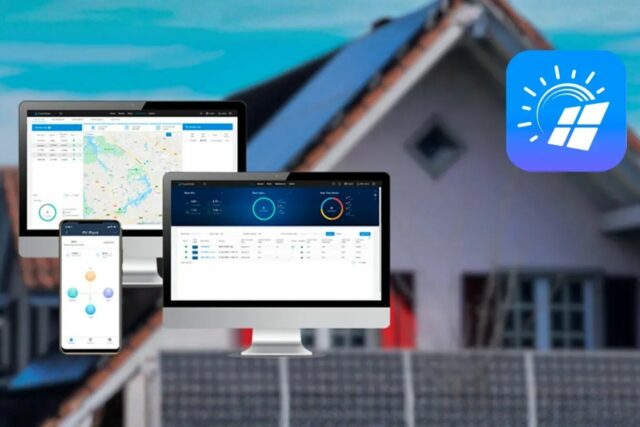
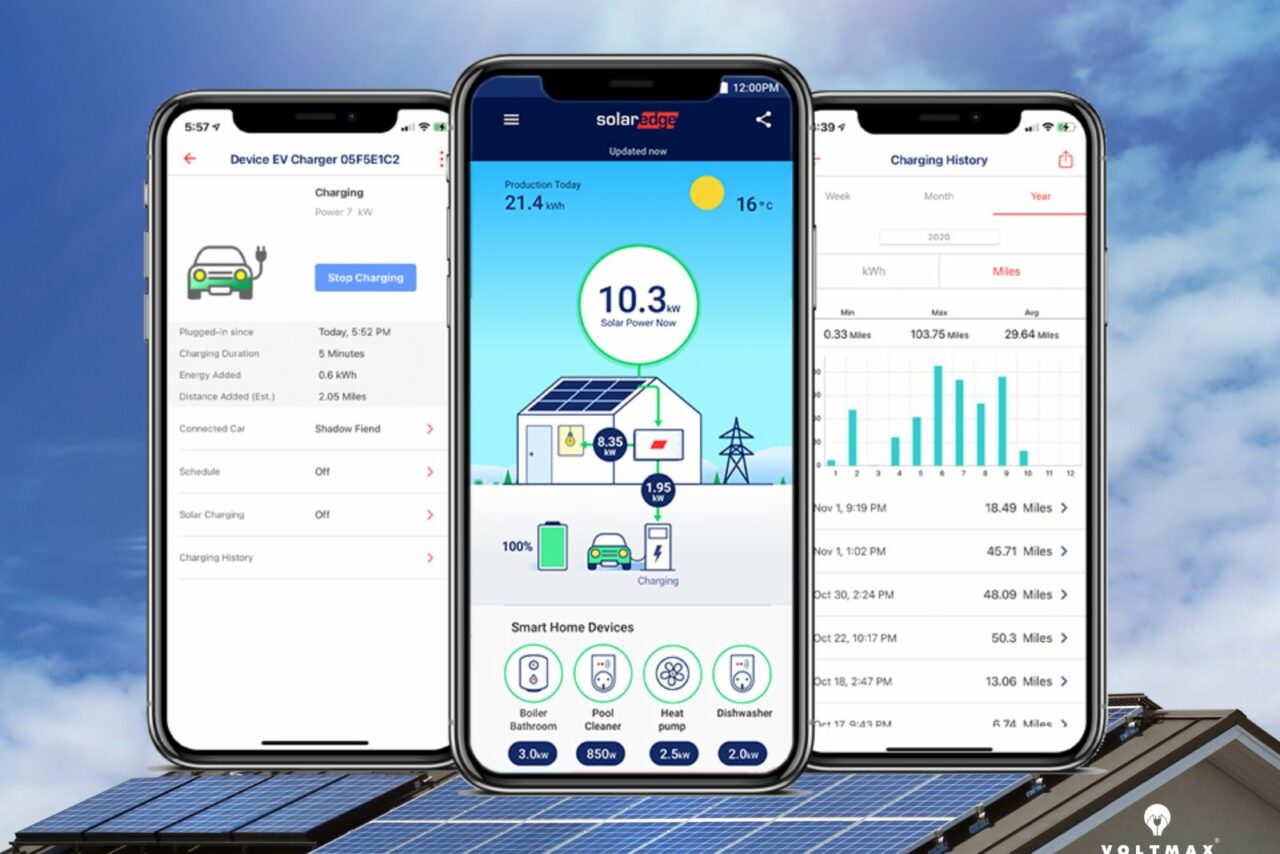
If the mySolarEdge app does not display production data, the problem is often related to communication between the inverter and SolarEdge’s monitoring servers, not necessarily to solar production itself. According to SolarEdge, monitoring data is usually updated every 15 minutes, and users can check the “Last Updated” field in the app dashboard or Site Details page.
This distinction matters. A system can still be producing energy even if the app is not showing current values, because production and communication are handled separately. SolarEdge explicitly notes that a communication issue does not automatically mean the PV system has stopped producing.
Start with the simplest question: was production data ever visible?
SolarEdge recommends first checking whether production data was ever displayed in the app. If production data was never visible from the beginning, the system owner should contact the installer so that inverter communication can be checked. If the app used to work but the last update is more than 24 hours old, SolarEdge advises checking system communication next.
Step 1: Check whether the inverter is communicating
The first practical check is to confirm communication at the inverter itself.
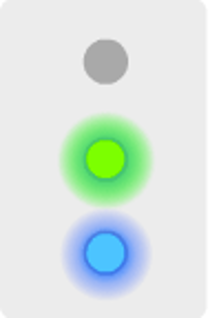
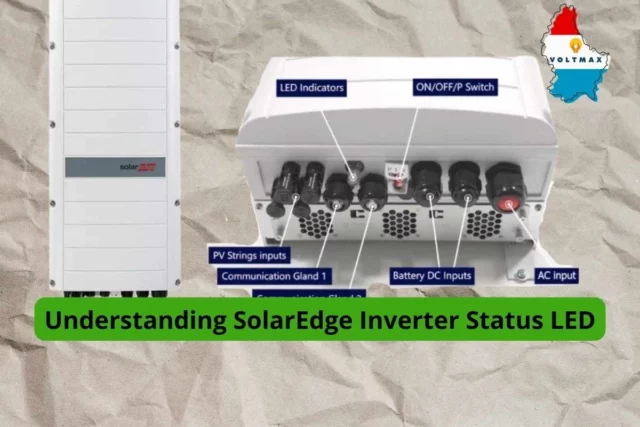
For SolarEdge inverters without an LCD display, the blue LED is the key indicator. When the blue LED is on, the inverter is communicating with the monitoring platform. SolarEdge’s LED reference also confirms that any LED combination with the blue LED on indicates communication with the monitoring platform.
For inverters with an LCD display, SolarEdge instructs users to access the server communication screen. If the display shows S_OK, the inverter is connected to the monitoring server.
This is one of the most important checks because it helps separate a monitoring issue from a wider system issue. SolarEdge also explains that, on LCD-equipped systems, Pac [W] indicates the amount of AC power currently being produced.
Step 2: Confirm whether the system is producing power
If the concern is not only missing app data but also suspected low or zero production, SolarEdge provides a separate indicator for production.
For inverters without an LCD screen, the green LED shows that the system is producing power. SolarEdge also reminds users that the system does not produce at night, which should always be considered before assuming there is a fault.
This means a common real-world scenario is entirely possible: the inverter may still be producing energy, but the app appears empty because the communication link to the monitoring platform has been interrupted.
Step 3: Check the router and local internet connection
If the inverter was communicating before but app data stopped updating, SolarEdge advises checking the router settings. The router should be powered on and connected properly. SolarEdge also specifically asks whether the router or Wi-Fi password was changed recently, because this can break the inverter’s connection to the monitoring platform.
This is especially relevant on systems that use Wi-Fi for monitoring communication. SolarEdge’s Wi-Fi troubleshooting documentation explains that the inverter can be reconnected to the local wireless network through the mySolarEdge app. The guide also says users should verify that the inverter is responsive first by checking for illuminated LEDs. If the inverter is not responsive, SolarEdge recommends contacting the installer.
Configuring Inverter Communication
You may need to reconfigure your inverter communication in certain cases, such as when your Wi-Fi network or password has changed. To configure your inverter communication:
- click “Inverter Communication” in the menu:

- Refer to the steps above, under “Connect to Your Inverter.“
- The status of your Wi-Fi connection should be ‘disconnected’. To connect to your Wi-Fi
network, click “configure.

- Select your preferred wireless network and insert a password, then click “join.” You will now be connected to your Wi-Fi network. To confirm the connection is successful, click on “inverter communication” in the menu. Connect to the inverter and verify the status as S_OK.

Step 4: Reconfigure Wi-Fi communication if network details changed
When the home Wi-Fi network or password has changed, SolarEdge instructs users to reconfigure inverter communication in the mySolarEdge app. In its official communication setup guide, SolarEdge explains that users can open Inverter Communication, connect to the inverter, select the preferred wireless network, enter the password, and then verify that the connection status is successful. SolarEdge states that S_OK in the Inverter Communication or Inverter Status menu means communication with the SolarEdge Monitoring Server is successful.
The SolarEdge Wi-Fi troubleshooting guide adds the same confirmation criteria: once reconnection is successful, users should check for a blue-lit LED under the inverter and verify S_OK in the communication or status screens. If the blue LED or S_OK is still not shown, SolarEdge recommends contacting the installer.
Step 5: Reset the router if needed
If the previous checks do not resolve the issue, SolarEdge’s official app support page recommends resetting the router and then checking inverter communication again. If communication problems continue after that, SolarEdge directs system owners to contact their installer.
When should the installer be contacted?
SolarEdge’s official support pages consistently point system owners back to the installer in several situations: when production data was never visible, when the inverter is not communicating, when the inverter is not responsive, or when Wi-Fi reconnection does not restore the blue LED or S_OK status.
That recommendation is sensible because the installer can verify whether the issue is related to site communication, inverter settings, or another system-level fault.
A practical summary for system owners if SolarEdge app not displaying production data
If your SolarEdge app is not showing production data, the most reliable approach is to check the issue in this order:
- Look at the Last Updated time in the app. SolarEdge says monitoring data is usually refreshed about every 15 minutes.
- Confirm whether production data was ever available before. If it never appeared, contact your installer.
- Check inverter communication:
- Blue LED on for inverters without LCD = communication is active.
- S_OK on LCD/display screens = communication with the monitoring server is active.
- Check production separately:
- Green LED on means the system is producing.
- Remember that solar systems do not produce at night.
- Verify the router is on and connected, and check whether the Wi-Fi network or password has changed.
- Reconfigure Wi-Fi in mySolarEdge if needed, then confirm the connection by checking for blue LED ou S_OK.
- If the issue remains, reset the router and recheck communication.
- Contact your installer if communication is still not restored or the inverter is unresponsive.
Need support with your PV system in Luxembourg?
If your SolarEdge app is not displaying production data, please send us a detailed message at service@voltmax.lu or use the service form below. Include the site address, the inverter model if known, the last time data was visible in the app, any screenshots, and whether the inverter shows a blue LED or S_OK communication status. Clear information helps us diagnose the issue faster.